I previously wrote this article, in which I explain how I save my car’s location in Home Assistant. This means I always know where I parked my car.
This article goes into a little more detail. I’ll show you everything that’s possible with Android Auto. I just want to touch on the topic a little here. Articles on the individual points will be published later.
Some of these points will probably also work with Apple Carplay.
The basics: Setting up the Home Assistant dashboard in your car
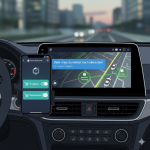
Once you have installed the Home Assistant app on your smartphone, you will find Home Assistant as an app in Android Auto. At first, the page is not very clear. In the Home Assistant app, you can add buttons to the dashboard under ‘Settings – Companion App – Android Auto Favourites’. These can be simple status entities or buttons that can be clicked. Add the desired entities here.
Since the Home Assistant update 2025.12, setup has become even more intuitive. You no longer need to delve deep into the Companion app settings. Simply click on the three dots (menu) in the top right-hand corner of the desired entity in the Home Assistant interface and select ‘Add to…’. There you can activate the entity directly for Android Auto.
I’ve added a switch here that turns my heating on or off. This allows me to turn on the heating while driving and come home to a pre-warmed flat in winter.
Advanced: Notifications and action buttons
Home Assistant allows you to send notifications to your smartphone.
If you set the parameter ‘car_ui: true’, this notification will also be displayed in Android Auto.
Example:
service: notify.mobile_app_dein_handy
data:
  message: "Garage door is still open!"
  data:
    car_ui: true
    actions:
      - action: "close_garage"
        title: "Close Garage"
You can also go one step further and add an action to the notification. This will display a button in the Android Auto notification that you can click to perform an action.
The notification appears as soon as I connect my mobile phone to Android Auto and I am not in the ‘home’ zone. When I click on the action button, a message is automatically sent via Telegram, saying that I am on my way home.
I have already written an article about Telegram notifications. These have the advantage that the messages can be read aloud via Android Auto.
Expert level: AI integration for the ultimate smart car
To take it to the next level, you can combine it with AI. The message mentioned above, saying that I’m coming home, is written by AI. This means it’s not always the same static message, but is always different. I deliberately have the message generated in a silly way so that people enjoy reading it and have something to laugh about.
For a while, I had a button in my dashboard that read out the current petrol prices to me using the Tankerkönig integration.
When I’m away, I get updates on what my cats are doing. The stream from the indoor cameras is analysed by AI, summarised as text and sent to me via Telegram.
As mentioned, I will write separate articles on some of these topics and link to them here.