Who hasn’t been there? You’re at work when your phone rings and your significant other asks you to pick something up from the supermarket on your way home. Or you get a notification that a parcel is waiting for you at the post office. Since I’m very forgetful, I regularly drive home without stopping at the supermarket or post office first. But thanks to my new automation, that no longer happens to me. I’ve written before about the advantages of Telegram integration. And also about how to control Home Assistant with Android Auto. Combining all these tools gives you a nice and easy way to be reminded of such to-dos.
Requirements
For this to work, Home Assistant must be accessible externally. You must also have the Home Assistant app installed on your smartphone. The App must also track your location.
Create zones
In the example of shopping and the post office, I create a zone in Home Assistant for each. I call these ‘Reminder: Shopping’ and ‘Reminder: Post Office’.
I draw the zone around the supermarket and the post office. The radius around these points should not be too small, otherwise the notification may arrive too late and you will have already driven past. I have chosen a radius of 300 metres for shopping and 500 metres for the post office.
Create helpers
In Home Assistant, we now create two switches under ‘Settings – Devices and Services – Helpers’. We name one “helper_reminder_shopping” and the other ‘helper_reminder_postoffice’.
If I want to be notified, I can activate one of the two helpers.
Bonus: Create tile
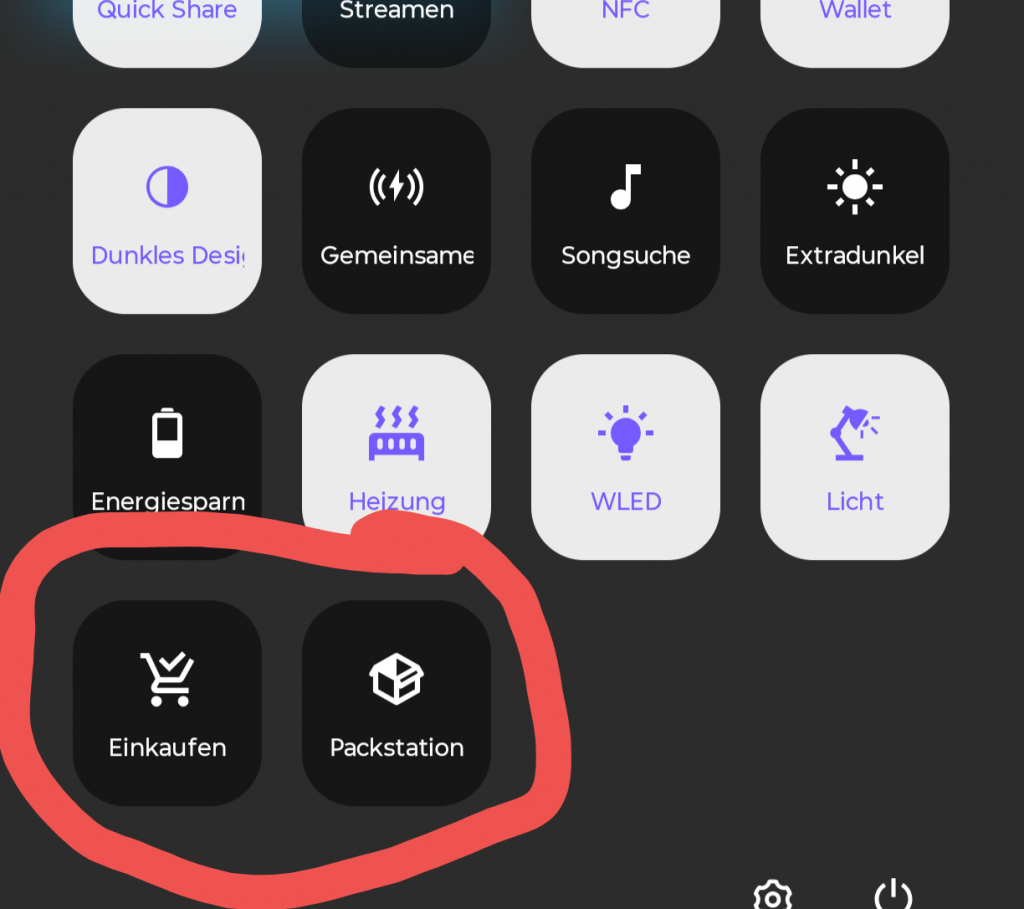
In the Home Assistant Android app, you can add new tiles under ‘Settings – Companion App – Manage Tiles’. Select the tile number at the top, give it a name and then assign the corresponding entity. In our case, we call the tiles “Shopping” and ‘Post Office’. We link them to our previously created helper entities and assign descriptive icons. I am a fan of selecting ‘Vibrate when selected’. Then click on ‘Add tile’.
Now you can add these tiles to the Android quick menu. This allows you to quickly set whether you want to be reminded or not. And you can do this without having to fiddle around in Home Assistant.
Automation
The automation is triggered when we enter one of the two zones. I only want to be notified when I’m sitting in the car, so I’ve added the additional condition that the automation should only be executed when my smartphone is connected to Android Auto.
Depending on which trigger was activated and which helper is enabled, a Telegram message is then sent to my smartphone, which can also be read aloud in Android Auto.
alias: Android Auto - Reminder
description: ""
triggers:
  - trigger: zone
    entity_id: device_tracker.smartphone
    zone: zone.reminder_postoffice
    event: enter
  - trigger: zone
    entity_id: device_tracker.smartphone
    zone: zone.reminder_shopping
    event: enter
conditions:
  - type: is_connected
    condition: device
    device_id: XXXXXX
    entity_id: XXXXXX
    domain: binary_sensor
    enabled: true
actions:
  - choose:
      - conditions:
          - condition: state
            entity_id: input_boolean.helper_reminder_shopping
            state:
              - "on"
          - condition: zone
            entity_id: device_tracker.smartphone
            zone: zone.reminder_shopping
        sequence:
          - action: notify.send_message
            metadata: {}
            target:
              entity_id: notify.telegram_bot_XXXXXX
            data:
              message: Remember you wanted to go shopping
      - conditions:
          - condition: state
            entity_id: input_boolean.helper_reminder_postoffice
            state:
              - "on"
          - condition: zone
            entity_id: device_tracker.smartphone
            zone: zone.reminder_postoffice
        sequence:
          - action: notify.send_message
            metadata: {}
            target:
              entity_id: notify.telegram_bot_XXXXXX
            data:
              message: Remember you wanted to go to the post office
    enabled: true
mode: single