
AI is a topic that is becoming increasingly relevant.
More and more AI functions are also being incorporated into Home Assistant.
I recently took a look at the local LLM Ollama.
For those who are not familiar with Ollama: it allows you to create your own offline AI, similar to ChatGPT and the like. You can then use this in Home Assistant as an assistant. And all of this is local and offline.
But this article is not about Ollama. It’s about AnythingLLM. This is essentially an interface for LLMs that offers additional functions. You can get a brief overview here, I would like to show you how AnythingLLM can be integrated into Home Assistant and what the tool can do.
First of all: this is not the official way. There is no official AnythingLLM add-on (yet?). To use it, you need to install the Portainer add-on.
I wrote a separate article about Portainer: Click here
Install AnythingLLM
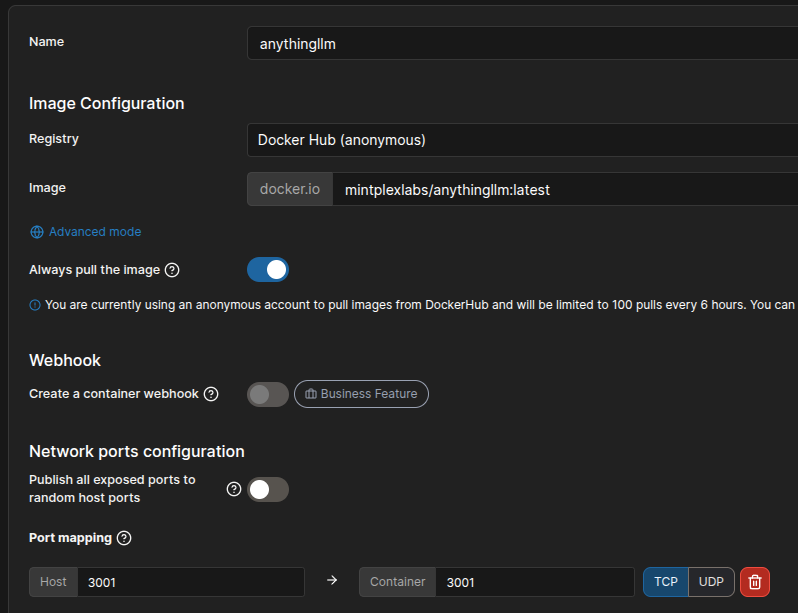
Under ‘Environments – primary – Containers’, click on ‘Add container’. Enter a name, e.g. “anythingllm”, and under Image, enter ‘mintplexlabs/anythingllm:latest’. Click on the ‘Map additional port’ button and enter ‘3001’ for Host and Container.
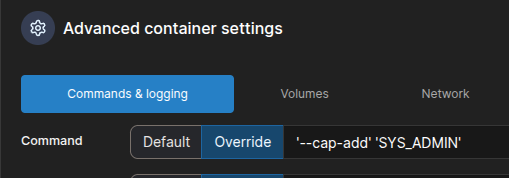
Further down under ‘Advanced container settings – Commands & logging’, select “Override” under ‘Command’ and enter “–cap-add” ‘SYS_ADMIN’.
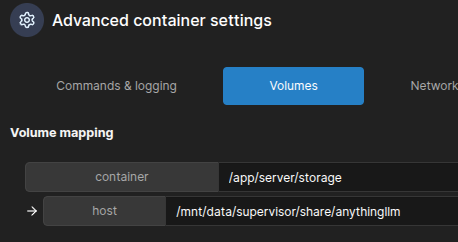
Now click on ‘Volumes’ and enter ‘/app/server/storage’ as the container. To the right of the field, select ‘Bind’. For “host”, enter any path that is writable. In my case, ‘/mnt/data/supervisor/share/anythingllm’.
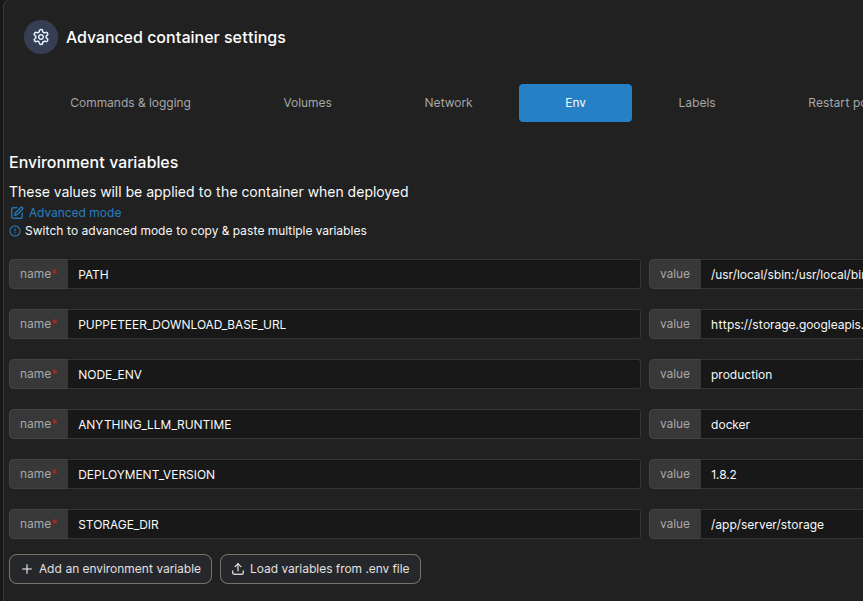
Click on ‘Env’ and then click on ‘Add an environment variable’. Enter STORAGE_DIR as the name and /app/server/storage as the value.
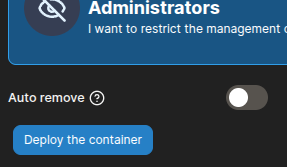
Now click on ‘Deploy the container’.
Add AnythingLLM to the Sidebar
Since we do not integrate AnythingLLM into Home Assistant via board resources, it will not be displayed in the add-ons or sidebar. As a workaround, you can add the URL http://homeassistant.local:3001 to the sidebar under ‘Settings – Dashboards – Add Dashboard – Web Page’. Please note: If you access Home Assistant via https, http pages cannot be opened in this way.
Troubleshooting
At first, I had trouble finding a path where AnythingLLM had write permissions. In the end, I used my share directory, which is provided via the ‘Samba share’ add-on.
Recap
With the help of Portainer, tools that are not available via the standard add-ons can be installed on the Home Assistant machine. However, some technical know-how is required here, as each tool requires its own settings. It is important to remember that not too many programs should be installed in this way, especially if Home Assistant has been installed on small hardware such as a thin client* or a Raspberry Pi*.