
Do you want to be notified when a product is back in stock or when a price changes? With the Home Assistant Scrape Integration, you can turn almost any website into a sensor. In this guide, I’ll show you how to extract data from websites without any programming knowledge.
Example Scenario
Let’s say you want to be notified as soon as a specific item in an online shop is available again. You enter the URL and the value you want to monitor—for example, the text “Currently unavailable.” You can then set up an automation to receive a notification as soon as the text “Currently unavailable” is no longer detected.
Finding the CSS Selector (Preparation)
To use the integration, we need the URL where the text is located and the CSS selector. This is the part where it gets a little technical. To find the selector, open the desired URL and press the F12 key to open the browser’s Developer Tools (DevTools). Note: This only works on a PC, not on a smartphone.
Make sure you are in the “Elements” tab and click the icon in the top-left corner with the arrow:

Now, you can hover over the desired text with your mouse. It will be highlighted in color. Once you click on the text, the DevTools will jump to the corresponding line in the source code. Right-click on that line, go to “Copy” -> “Copy selector”, and save that value somewhere.
Installation
First, we need to install Scrape. In Home Assistant, navigate to Settings -> Devices & Services -> Add Integration and search for “Scrape”.
- Resource: Enter the URL of the page you want to monitor.
- User-Agent Tip: Websites often block “bot requests.” By providing a User-Agent, we identify ourselves as a standard browser to avoid being blocked.
- Headers: Enter the following in the Header field and click “Next”:
{"User-Agent": "Mozilla/5.0 (Windows NT 10.0; Win64; x64) AppleWebKit/537.36 (KHTML, like Gecko) Chrome/120.0.0.0 Safari/537.36"} - Configuration: Under “Name”, give your entity a title. In the “Select” field, paste the CSS selector you copied earlier and click OK.
If you open the entity now, you should see the text you wanted to monitor.
Important Notes
There are websites where this simple copy/paste method won’t work. If the desired values are generated via JavaScript, they cannot be read this way. Other websites might hide values deeper in the source code, preventing the DevTools from jumping directly to the correct line.
In Practice
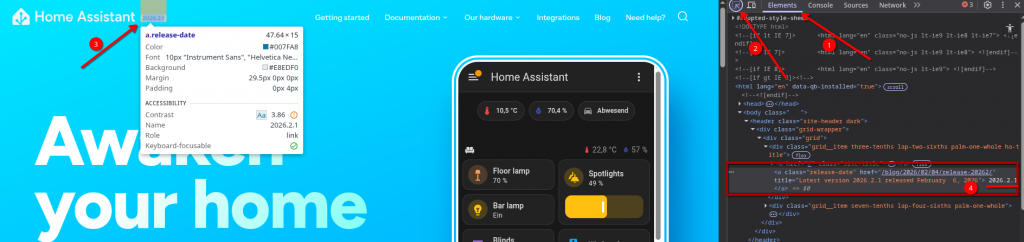
As a simple example, let’s say we want to pull the current version of Home Assistant from the official website. This information is located in the header.

Here is the workflow described in the image above.
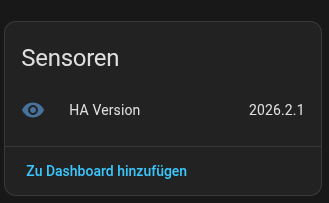
Once added to Home Assistant, the sensor looks like this:
Conclusion
The Scraper integration is incredibly helpful for staying up to date with specific websites. However, not every site is suitable for this method, and occasionally, you may need to dive a bit deeper into the technical details.